How do I issue a refund?
Need to issue a refund to a customer? No problem: just open up the Store Reports view by clicking on the icon in the sidebar on the left. Select a date range that includes the date of the sale you want to edit, then find the sale in the list of invoices.
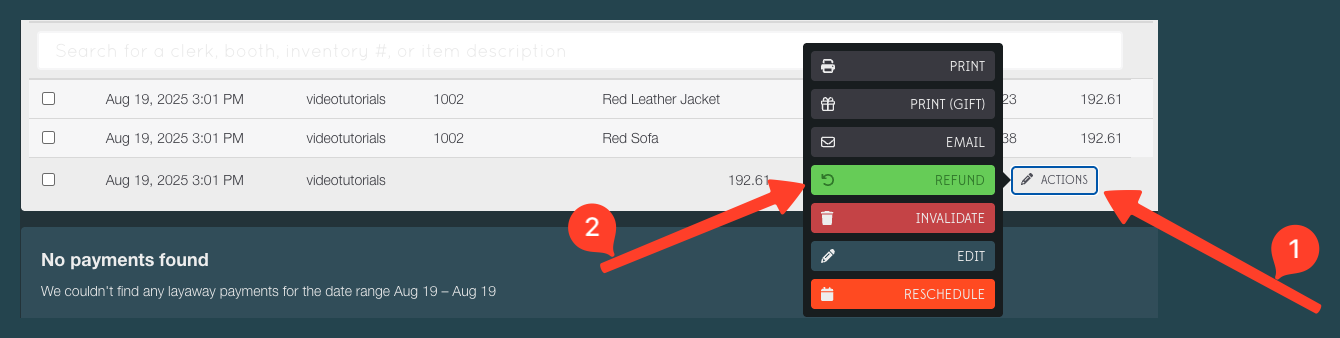
Click the Actions beside the sale (1 above), and you’ll see a menu pop-up with a green refund button. Select Refund (2 in the above graphic) and a refund screen will pop-up with details of the items in the transaction.
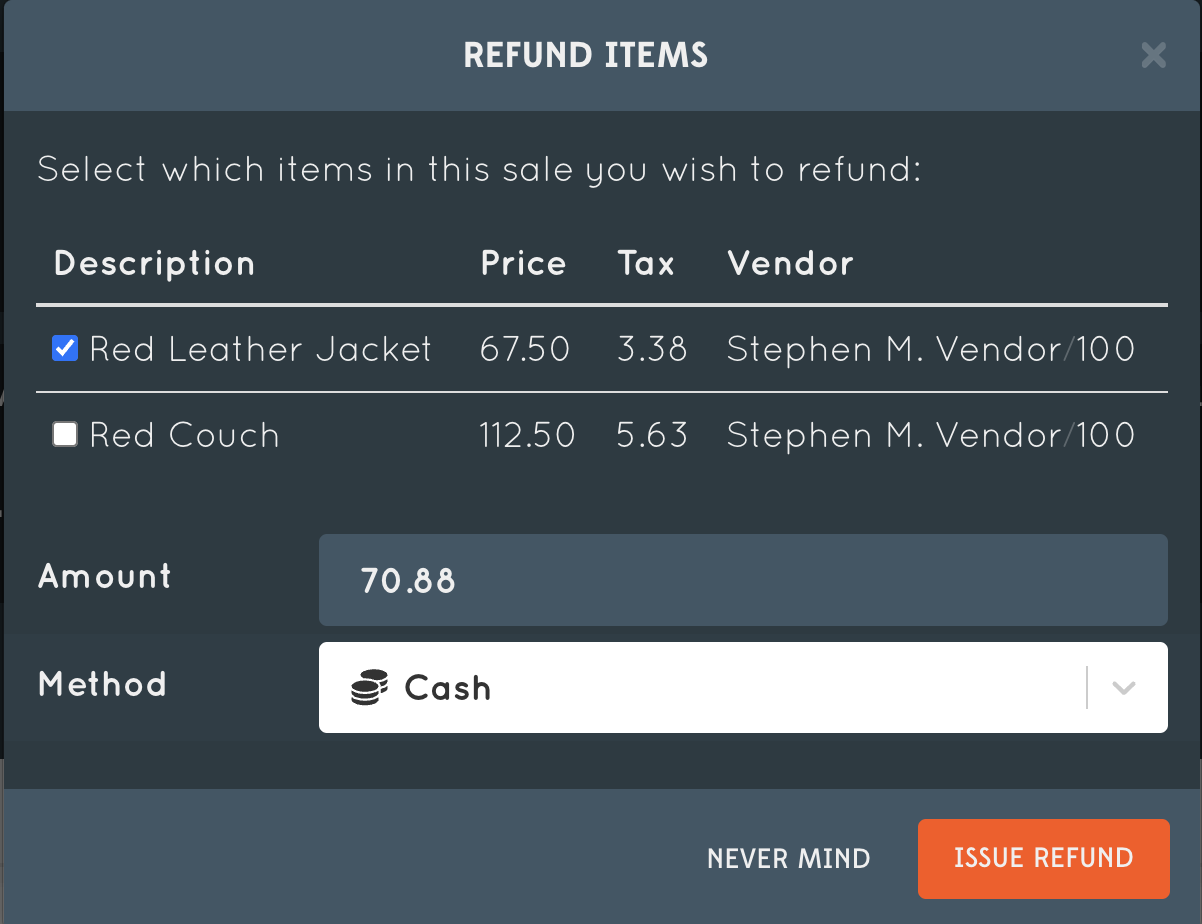
Select the items you want to refund, count out the amount indicated in cash, then click Issue Refund. Quail will create a new transaction for the refunded items with negative amounts for the item’s sale price and tax; this will show up on your (and your vendors’) reports as a negative sale credit:
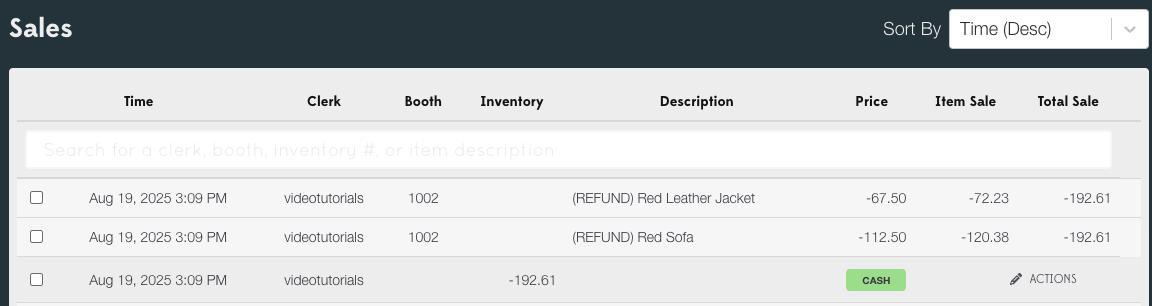
To keep the bookkeeping sane the original sale isn’t modified – that way, refunds for sales that have already been paid out to vendors will be applied to the next payout. This happens automatically, though – there’s nothing more that you need to do!