Rent: How to think about it, and how (best) to change it in Quail.
It’s a new year and with that we usually see a pretty good uptick of stores that are adjusting their rent for the upcoming year. It makes sense, it is tax season and that has a funny way of forcing us to look at the profits (or losses) from the previous year. It’s the perfect moment to ask yourself am I charging enough?
So let’s talk about how to think through your rent, and then we’ll walk through exactly how to update it in Quail.
Start With Your P&L (Tax Season Is Actually Great Timing)
When you’re putting together your taxes, you’re already doing the work, gathering the expenses that you have incured over the last year. Whether these are planned or unexpected you will want to consider them going forward. Utilities, insurance, payroll, merchant fees, supplies are just a few examples of things not to forget. Don’t let that effort of compiling your expense for your tax preparer go to waste.
This annual review is the single best thing you can do to make sure your pricing still makes sense for your business. Also remember to review previous years reports; is there a trend?
How Much Rent Do You Need?
Every store is different, but there are a few schools of thought on how to structure your rent and commission — and we’ve tried most of them ourselves.
Model 1: Cover expenses with rent, make your profit on commission. The idea here is simple. Your rent income covers the bills, and your commission income (somewhere in the 10-20% range) is where your actual profit comes from. It’s predictable on the expense side and gives you a nice upside when your vendors are selling well.
Model 2: Build your profit into rent, skip the commission. In this model, you figure out what you want to make (your profit), add it to your total expenses, and price your rent accordingly. No commission; rent is your profit center, full stop. It’s clean, simple, and you’re not dependent on vendor sales volume to hit your number.
Those two models are actually how the employees of Quail operate their stores. Both work and it really comes down to how you want to structure your income and how much variability you’re comfortable with.
Model 3: Commission only. Your income is entirely dependent on how much your vendors sell, which makes planning and forecasting a real challenge. It can work in the right circumstances, but it’s not something we’d recommend as a baseline and not very many stores operate this way.
Use Last Year’s Expenses as Your Baseline
Pull up your expense totals from last year and use that as your starting point. That’s the the minimum your rent income needs to cover.
Remember to compare it to the year before. Is the number going up? By how much? That trend matters, because your expenses next year will almost certainly be higher than they are today.
Once you know your total annual expenses, back into your monthly requirement and then figure out what that means per booth. Which brings us to a really important variable a lot of owners might forget to account for…
Don’t Forget Your Occupancy Rate
You probably don’t have 100% of your booths filled 100% of the time. There are vacant booths, turnover gaps, a spot that’s been taken over by yourself with your own items for sale.
When you’re calculating the rent you need to cover your expenses, you can’t assume full occupancy. If you have 50 booths but you’re consistently running at 85% capacity, you’re really working with an average of about 42-43 paying booths at any given time. Your rent math needs to reflect that.
The same logic applies if you’re thinking in terms of square footage. Not all square footage is sellable space; you’ve got walkways, checkout areas, storage, bathrooms. Don’t calculate rent based on your total square footage. Use your usable selling space as your baseline.
Account for Inflation in Next Year’s Numbers
This one’s easy to overlook, but it’s important. Your expenses this year are not going to be your expenses next year.
Energy costs go up. Insurance premiums creep higher. Merchant fees adjust. If you set your rent based purely on what you spent last year without building in a buffer, you’ll likely find yourself behind the curve again by Q4.
A good rule of thumb: add a 3-5% inflation buffer to your projected expense total before you back into your per-booth rent number. It’s better to be slightly ahead of your costs than to have to raise rent again six months from now.
How to Update Rent in Quail
So you’ve done the math, you know it’s time to adjust, and you’re ready to make the change. Here’s how to do it.
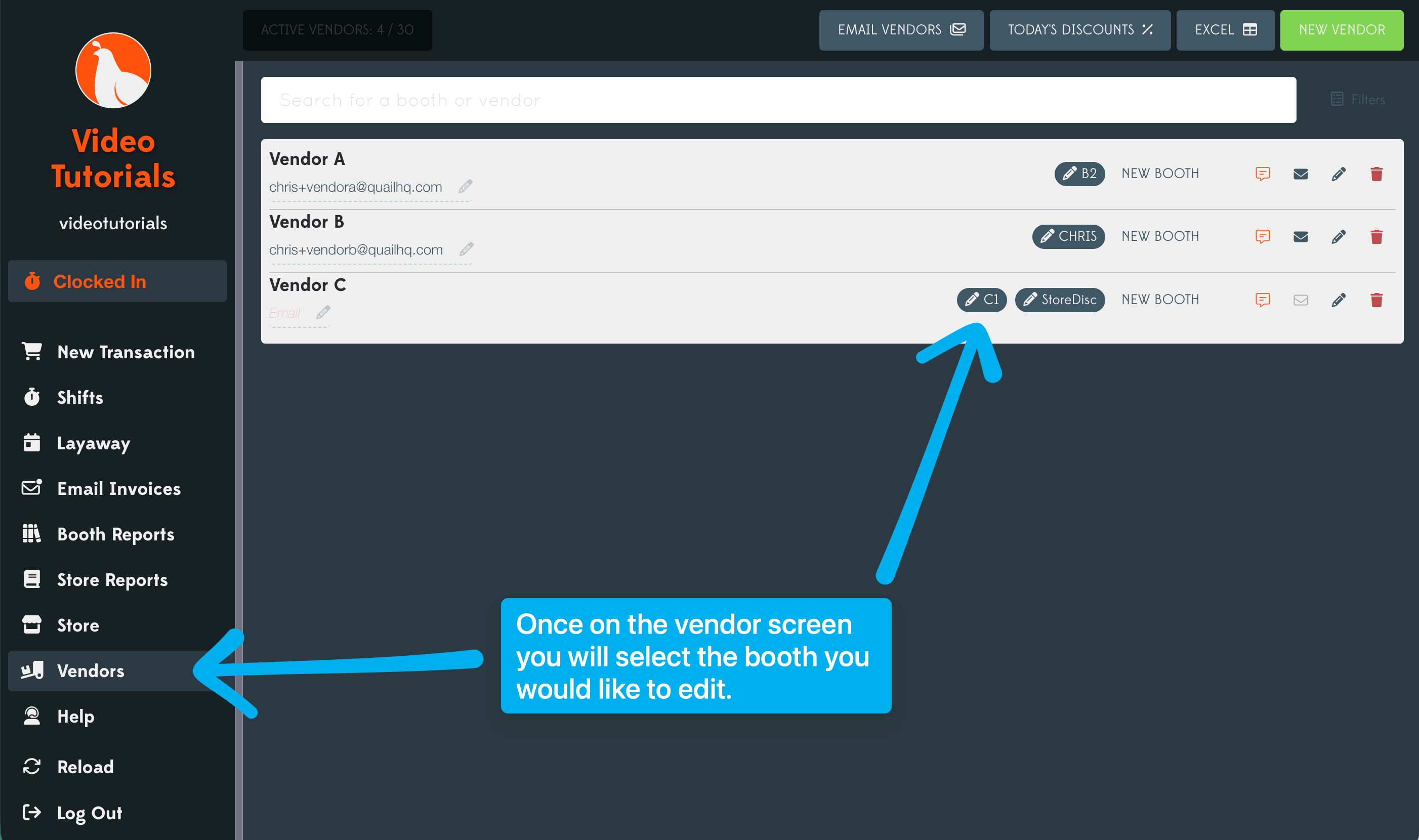
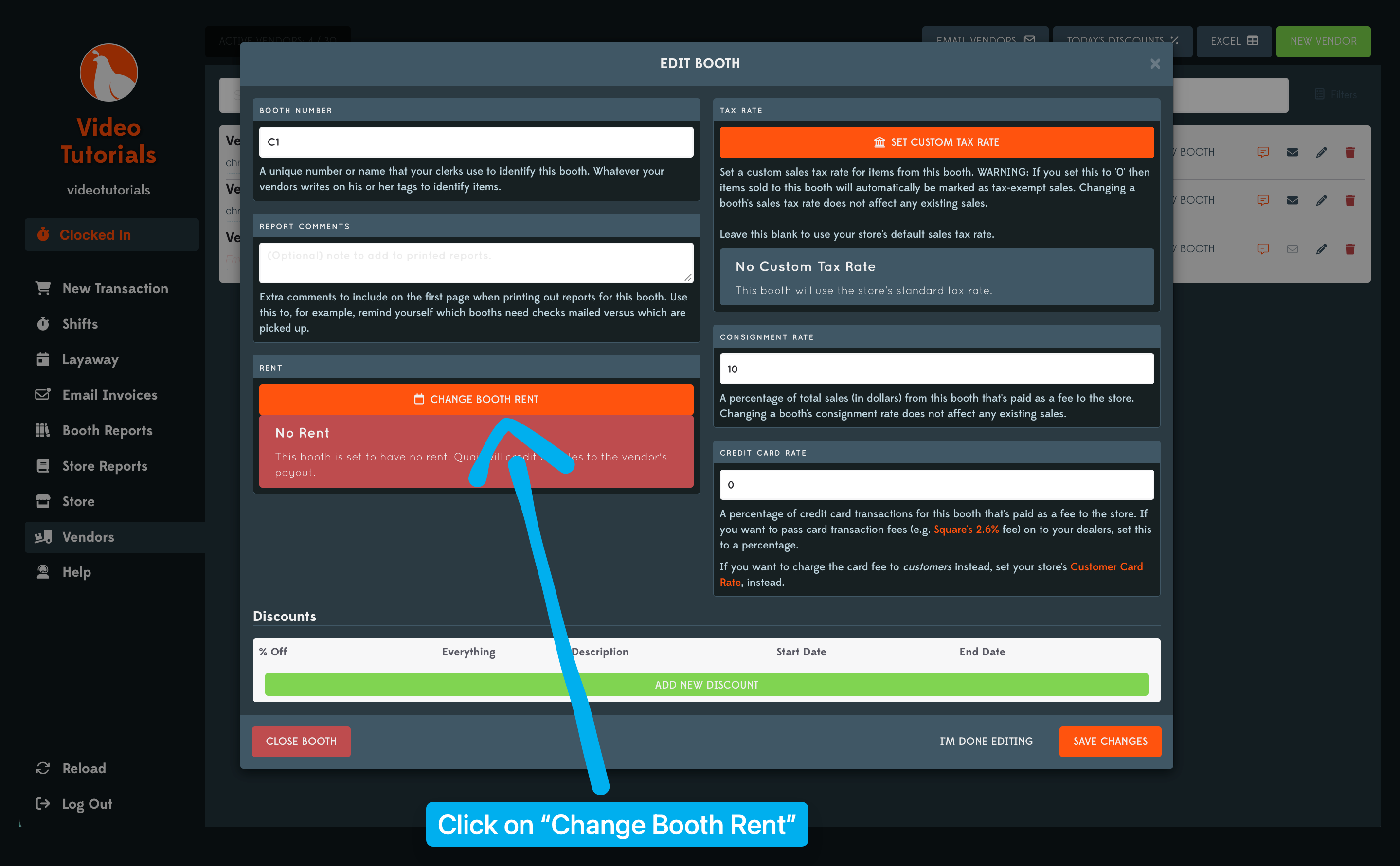
Head to Vendors in the left-hand menu and select the booth you’d like to update from the vendor list. Click the booth identifier on the right-hand side to open the Edit Booth pop-up. You will then want to click on Change Booth Rent.
From there, set your new rent amount, choose the date you’d like the change to take effect, and hit Save Changes.
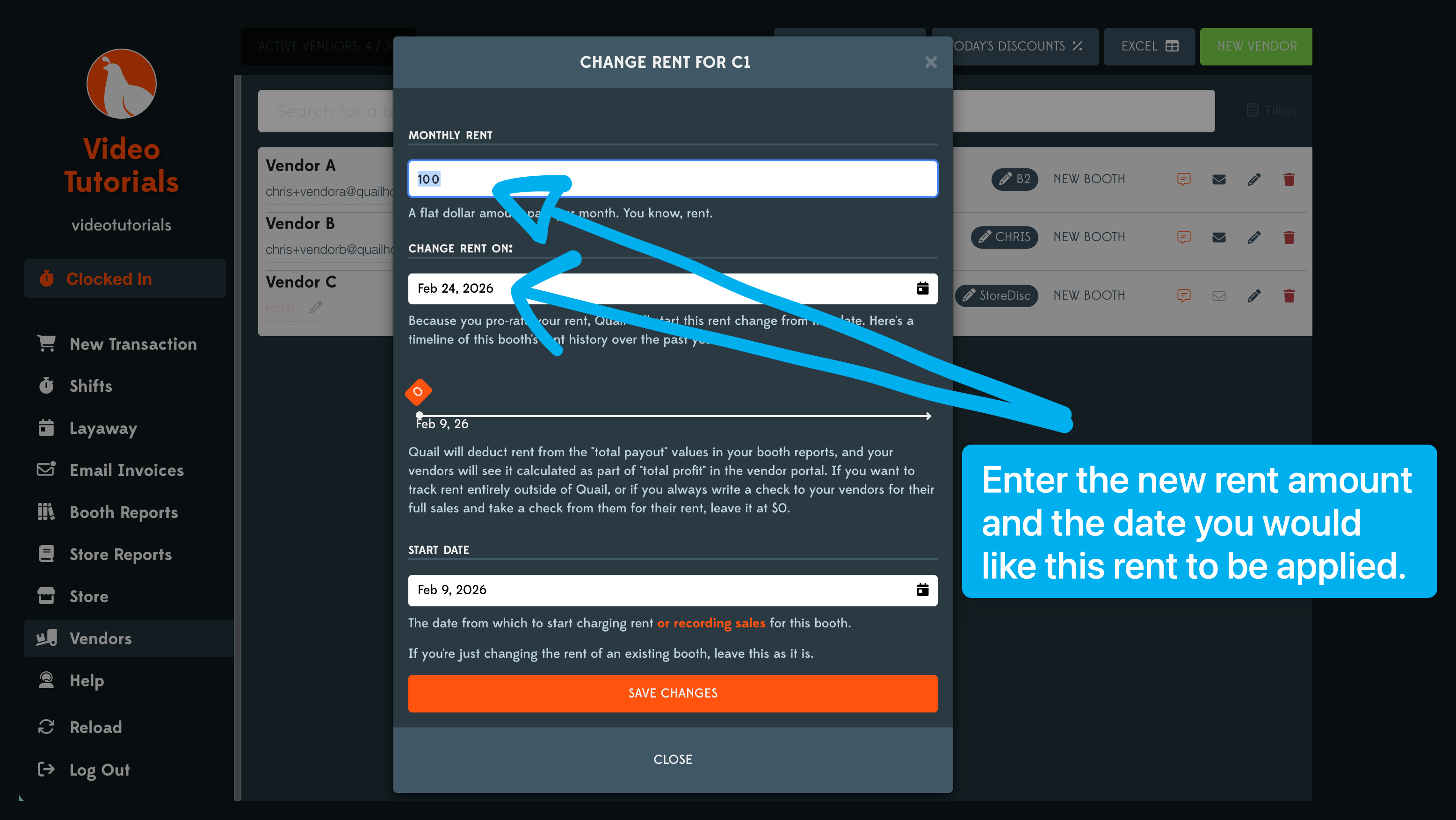
A note on mid-month changes: How the timing works depends on whether you’re pro-rating rent.
- If you are pro-rating rent, the change takes effect immediately when saved.
- If you are not pro-rating rent, the change won’t kick in until the first of the following month.
If you need the new rent to apply to the current month, go back into the booth, click Change Booth Rent again, and look at the timeline — you’ll see the rent entry with a small pencil icon next to the dollar amount. Click that and backdate the rent start date to the first of the current month. Close the pop-up and you’re all set — the new rate will be applied for the current billing period.
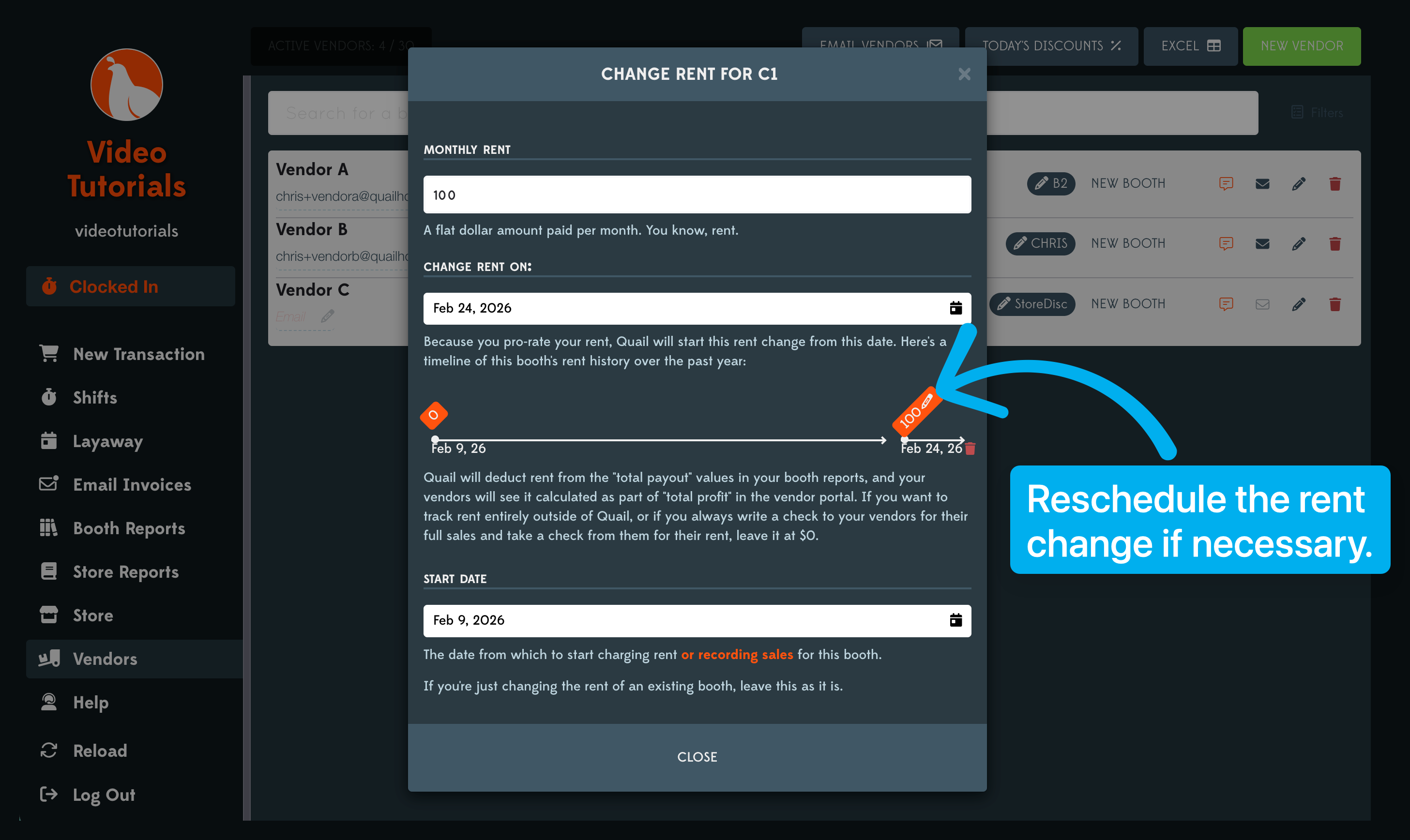
That’s it! The rent should be updated and your vendors will see that change on their vendor portal. Need a hand updating booth rent? Give us a shout, we’re always here to help.