Announcing Barcode Scanning

One of the things people have asked for the most in Quail over the last few has been barcode scanning – some way for stores to quickly scan items instead of having to type in by hand a booth number, description, and price. Partly this is about speed – you can’t beat barcodes for making checkouts quick! – but it’s also about keeping clerks from making typos and mistakes when ringing up sales.
We’ve been working on this for a while, and we think we’ve finally come up with a pretty good answer. We know barcodes aren’t for everyone – and honestly, they’re probably not even for most stores – but if you need ‘em they’re now something you can use in Quail. And to make things even easier, we’ve got a pretty sweet solution for how your vendors can easily print their own barcodes so you don’t have to be involved in tracking their inventory.
So, how does it work?
First, you’ll need to print some Quail-compatible barcodes (standard barcodes with 13-digit SKU numbers encoded won’t work). Because not many folks have access to industrial barcode printers – we sure don’t! – we’ve come up with a system that lets you print barcodes onto blank address label stickers (pretty much universally available at Staples or online). So, get yourself a pack of blank address labels & a USB barcode scanner and let’s get started.
Back already? Wow, that was fast. Next up, you’ll need to log in to Quail and enable barcode scanning – it’s a free optional extra, but to enable it you’ll need to open up Store > Settings, click on Extra Features, and switch Enable barcode scanning & printing to On:

That’s it! You’re all set up to scan barcodes when you’re ringing up sales.
Umm, that’s great, but I don’t have any barcodes!
That would help, wouldn’t it? If you’re good with printing barcodes yourself (rather than having your vendors print their own barcodes), you can do that right from Quail. Open up Store on the left, then click the new Print Barcodes tool:

From there, enter in the information you want to encode on your barcodes. This is a lot like ringing up a new sale – for each barcode, you’ll need a booth number, at least one of an inventory number or an item description (or both!), and a price:

Once you’ve filled in as many items as you want to print barcodes for, click Validate Barcodes and – after fixing any issues it finds – Print Barcodes. Quail should open up a new tab that you can print onto standard 4”x1” label sheets that you can purchase from any office supply store. If you’ve got a better-than-decent printer, you can switch to smaller labels – but we’ve had the best luck with 4” labels in our own stores.

Yeah, I’m not going to do that for all my vendors’ items.
…and I can’t say that I blame you. If you want your vendors to print their own barcodes they’ll need a Sandpiper account. From Sandpiper, they can enter in their own inventory, assign prices, and print barcodes that you’ll be able to scan – no work on the store side required. And when their items sell, Sandpiper will automatically mark them as sold and keep their inventory up-to-date.
(Sandpiper is a tool for ‘power vendors’, and we usually charge $6 / month for access to it. If you want to enable Sandpiper for all your vendors at a pretty hefty discount, shoot us an email at support@quailhq.com and we’ll get that set up.
Okay, I have barcodes on my items, how do I sell them?
Once barcode scanning is enabled (you did do that first step earlier, right?) you should see a new button on the New Transaction screen, next to “New Item”:
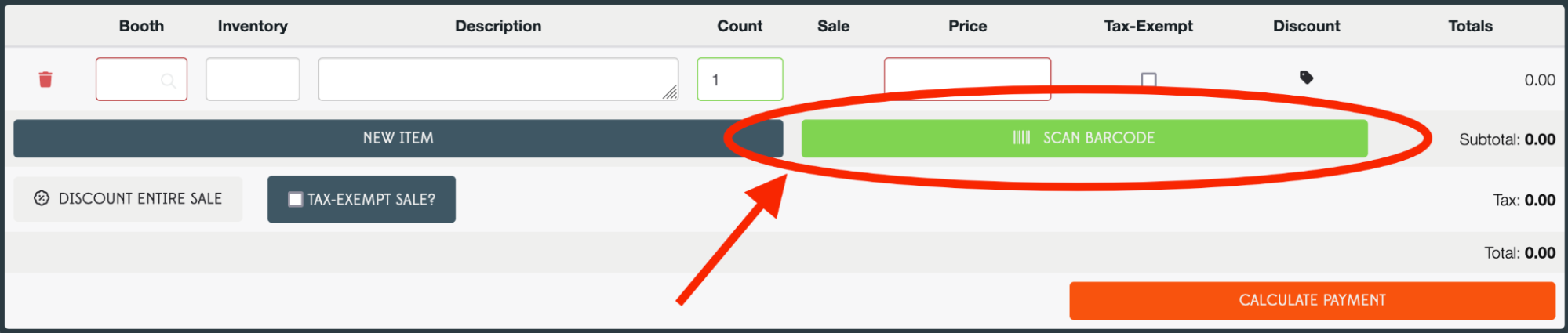
Click that guy and you’ll get this quite thoroughly blue pop-up:

…and scan away! You can scan multiple items before clicking done – though you might need to make sure that your barcode scanner inserts a blank line after each scan (get in touch; we’ll help you out). Once you have scanned all your barcoded items, hit Done to go back to the new transaction screen and finish ringing up your sale. You can, of course, ring up more items by hand – so there’s no need to barcode everything in your store to start using barcodes.
This is great! What hardware do I need?
You can use almost any USB 1D barcode scanner with Quail, but we like the Zebra LS1203 because it’s not particularly expensive, solidly reliable, and it has a really nice, bendy stand. If in doubt you can get one of those guys from us here: barcode Scanner from the Quail hardware store – but if you’d rather pick one up somewhere else we won’t be offended.
As always, if you have questions about barcode scanning or need a bit of help getting started give us a shout at support@quailhq.com.
Happy scanning!